
Python 🐢 Turtle Graphics
Introductory learning packet
Last edited - June 6, 2026
Still editing and adding ...
Questioning is the foundation of all learning.
The first step in rejecting not knowing is to ask, why?
Sweetland
Brief Introduction
Overview
- Introduction
- IDEL shell & editor
- Turtle Graphics Introductions
- Coding in the shell editor
- Repeating code
- Exploring some error messages
- Exploring the editor
- Starter script
- Making a house with the starter script
- Reusable functions
- House with additions
- Resources
Logo is a programming language to use as a mathematical workshop where learners can explore a variety of mathematical ideas through the context of measurement and geometry.
Logo has accumulated a large body of research, that suggest it promotes learning the understanding of how computers work, logical thinking, metacognition, creativity, motivates all types learners to want to learn, and increases their understanding of mathematical knowledge.
Knowledge such as: how mathematicians make algorithms to solve problems, problem solving strategies, learning number values, number sequences, similarity of two dimensional figures, rotations, angles, decimal numbers, fractions, infinity and limits, positive and negative numbers, coordinate systems, variables, estimation, geometric shapes, perimeter and area, symmetry, probability, algebra, geometry, trigonometry, calculus, and fractals.
Turtle graphics in Python is an advanced language of Logo and has been chosen as the programming language for this packet.
This Turtle Graphics Packet is a highly motivational sequenced set of activities which have been designed to introduce learners to turtle graphics in the Python environment as quickly as possible.
Learners are introduced to the most essential commands to create solutions to geometric problems. As they become acquainted with essential commands they are introduced to control functions and writing other functions. Functions, are what gives programs power as a computing environment to solve problems. Learners will put all this together to create programs for complex problems.
The author has used different versions of turtle graphic, Logo and Pascal, with learners since 1982 and has consulted with numerous teachers who have used them in classrooms. This Packet was created specifically for Python Turtle Graphics and for middle level learners using content that has been found to be highly effective. Most learners are solving complex problems by writing code in a few hours.
This packet is designed to work with IDLE (Python's Integrated Development and Learning Environment with their Turtle graphics module.
- Documentation about Python can be found at - https://docs.python.org/3/.
- Information about Python's releases and download (bottom of page) can be found at - https://www.python.org/downloads/release/python-3145/
All programs in gray boxes can be copied and pasted into the editor, saved, and ran.
Enjoy!
IDLE shell (interactive mode) and editor (script mode)
You access Python through the IDLE shell 3.14.5 window and script editor window to write and save programs.
You will need to download, install, and launch the IDLE.app. to work with this packet.
When you open the IDLE shell you will see ...
Python 3.14.5 (v3.14.5:5607950ef23, May 10 2026, 07:38:09) [Clang 21.0.0 (clang-2100.0.123.102)] on darwin
If you explore the menu bar, you will find many of the usual commands and IDLE turtle graphics specific information.
If you ...
Enter "help" at the command line >>>
Or click "Help" in the Menu at the top ,
you will find more information.
Under the IDLE Menu HELP tab you will see ...
- IDLE Help - describes the menu features and how they work
- Python Docs - launches the Python 3.14.5 documentation
- Turtle Demo - opens a window that will show code and run the code for a selection from the EXAMPLES menu
Explore the IDLE Help, Python Docs, & Turtle Demos as you wish and then ...
You are ready to begin the packet.
Enjoy!
Python turtle graphics, Introductory packet
Name:
Ready!
The shell will execute one line of code at a time as you enter it and Press return.
Below is a list of code to enter. One line at a time on the command line of the IDLE shell. 3.14.5 .
You only need to enter the code on the left.
The information after # are comments to explain the code.
If you make a mistake entering the code, after you press RETURN, the interpreter will print a message to help you debug.
It will look ominous at first, but take a deep breath, read what is there, consider what needs changed, and retype.
We'll get to some short cuts soon.
Coding in the shell window at the >>>
Here you go. Type and press return after each line.
from turtle import * # loads all turtle graphics code, * is necessary
# Nothing happens after Return if typed ok.
shape('turtle') # will open a turtle window and display the turtle
pencolor ('red') # will outline the turtle in red
fd(100) #draw a red line
turtle.pensize(10) # won't show till draw a line
turtle.right(90) # turns the turtle 90 degrees right
fd(100) # draws a wider line
pensize(1) #resets line width to narrow
lt(90) #you guessed left
fd(200) #yep forward again
If you tried to enter multiple lines, you found IDLE doesn't like that.
However,
If you place the cursor beside a line of code and press RETURN, that line of code will be copied and placed at the bottom of the list.
Then, click the cursor after it, Press RETURN, and it will be executed.
Nice short cut!
After you copy a line you can also edit it.
For example.
Place the cursor beside pencolor("red"), press Return.
It will copy it below at the cursor.
Then you can delete red and enter blue.
Press RETURN and the turtle will turn blue.
Slightly easier than typing from scratch.
Let's clear the screen and start another drawing.
Use the Menu - select Shell - Restart Shell
Enter the following code one line at a time.
from turtle import *
shape('turtle')
pencolor('purple')
fd(100)
rt(90)
Then use these commands by clicking beside them and editing them to explore and play around with changing the size of the pen, color, turning, and moving.
Draw what you create and list the commands you used.
My code and what I drew
================================ RESTART: Shell ================================
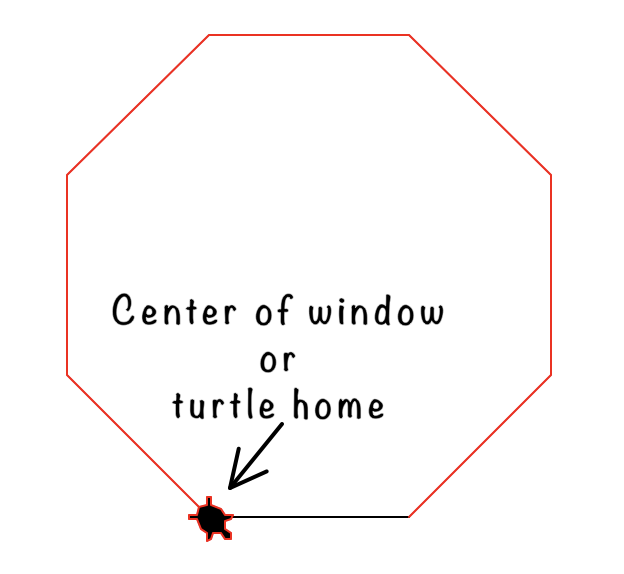 from turtle import *
fd(100)
shape('turtle')
pencolor('red')
lt(45)
fd(100)
lt(45)
fd(100)
lt(45)
fd(100)
lt(45)
fd(100)
lt(45)
fd(100)
left(45)
fd(100)
lt(45)
fd(100)
Repeating code
There are two basic ways to program repeating code.
Let's explore those, before we explore the editor.
Let's clear the screen and previous code from the turtle window.
At the top of your computer screen find the IDLE Menu, and select - Shell, and Restart Shell.
You will see the following added at the bottom of the command window.
=============== RESTART: Shell ==============
And the cursor below it.
And the turtle screen disappeared, don't worry, you will get a new one.
Enter the following one line at a time pressing RETURN.
import turtle
turtle.color('purple')
turtle.forward(100)
turtle.right(90)
for count in range(4): # indent the next two lines four spaces,
turtle.forward(50);
turtle.right(80) # press RETURN twice
You will see the shape didn't close.
Click to the right of the line with (80)
You should see a copy of the for statement added below.
If you double click, it will run the code.
You will see the turtle moved.
Repeat the process until the shape is closed.
Those two lines is a for range statement and is helpful to make shapes that have repeated patterns.
If this seems complicated, don't worry we will be visiting these again and you can explore them at your leisure.
Alternatively we could have used a while statement.
Let's do this and make a hexagon with the following code.
Clear the screen.
Menu, select - Shell, and Restart Shell.
import turtle
turtle.color('purple')
count = 0
while count <9:
turtle.forward(50)
turtle.right(40)
count = count + 1
print (count) #press Return twice
You will see a purple turtle draw a hexagon in the turtle window.
And the numbers 1 ... 9 printed in the command window.
So now you saw two ways to code short cuts for repeating coding.
And how to enter a print statement to print variables in the command window to check and see if the code is working like you expect it.
Let's explore some error messages.
If you are like me, you probably have seen the red error codes on the screen.
If you haven't, then type …
t.forward(123)
You will get a red line error message that t is not defined.
This means the interpreter looked through its code list and t wasn't listed.
Try
forward(100)
You will get an error message that ends with - name 't' is not defined.
Forward alone isn't defined. It is a method (command or function) for a turtle. So it needs to be associated with a turtle.
If you enter
t=turtle.Turtle() #press Return
t.forward(123) #the trutle will move forward 123 steps
Now the we have explored the Shell window or command line we are going to explore the Editor window.
Explorations with the editor
Introducing the editor
So far we have used the control line to enter commands for turtle graphics to perform.
While it is a great way to try out code and see immediate results, the results aren't saved and are not efficient for designs, art, or programs that are more detailed.
Additionally the - from turtle import * line of code isn't good programming. It is fine for exploring so you can use abbreviations, but for larger programs we should import turtle (graphics) and give the turtle a name. You can name the turtle whatever you want, I will name it t to make it easy to type.
You can see the first in the starter script below.
So, let's write a standard script that you can save and use as a starter file to write and execute your code.
Open IDEAL, if it isn't.
Select File - New File
Enter the following script. If you copy and paste it. You will have to four spaces before the two commans in the for_in range line.
Spaces are very important in Python.
Starter script
We are goiong to explore the commands on the left, a starter script, in the editor.
You can copy and paste the following code into the editor and Run it.
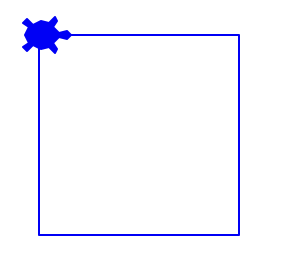
import turtle as t

# 1. SETUP the screen
screen = t.Screen()
screen.title("Turtle Project _")
screen.bgcolor("white")
screen.setup(width=600, height=600)

# 2. CREATE and CUSTOMIZE turtles
fT = t.Turtle() #first Turtle
fT.shape("turtle")
fT.color("blue")
fT.speed(3) # Speed from 1 (slow) to 10 (fast)

# --- REUSABLE FUNCTIONS ---

# 3. CODE for the Action
# Put your code below here. Replace the following example
for _ in range(4):
    fT.forward(100)
    fT.right(90)

# 4. Code run and exit
screen.exitonclick() # Keeps window open; till click on the screen
When it looks good, save it. Use the File - Save and name it starter file or starter script.
Then see if it runs okay. Click on Run in the menu bar and select - Run Module
If there is no Run, click in the editor window and it should appear.
Congratulations!
You now have saved a file and it is one you can open and use to make more.
We are going to put it to work after we review these important points.
Application important points
- Always put import statements at the very beginning.
- Setup the Screen before initializing the turtles.
- Setup the turtle's properties: shape, color, and speed before it starts moving, or the user will see it change mid-drawing.
- The Exit Event - screen.exitonclick() or screen.mainloop() is always at the absolute end. Any code after it will not run.
- The
import turtle as tcreates a space for the turtle module, names it t, and imports it there. When you create a turtle withfT = t.Turtle()it creates a custom turtle. Instead of using t as a global variable, this creates fT so you can actually pass a command to a specific turtle object you made. This allows you to directly pass a turtle into functions (e.g., draw_rectangle(fT, ...)).
This keeps code highly adaptive if you decide to add multiple turtles later. - Always consider the Execution Order of your program: Always group code execution from what you want in the back of your drawing to the front. The base canvas and scenery go first, structural frameworks go second, and tiny features like windows, stars, or streetlamps are written last so they sit layered on top.
- Predictable Heading Direction: Functions that construct geometric shapes should explicitly enforce a resetting vector (like t.setheading(0)). This prevents one shape from completely breaking the alignment of the next drawing command.
- # Use screen.exitonclick() unless you have an interactive program, then use turtle.done() OR screen.mainloop()
Making a house with the starter script
Open the starter script and edit it as the following.
Remember when you save it to use the Save As and name it house
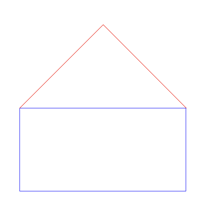
import turtle as t

# 1. SETUP the screen
screen = t.Screen()
screen.title("Turtle Project - House Builder")
screen.bgcolor("white")
screen.setup(width=600, height=600)

# 2. CREATE and CUSTOMIZE TURTLES
fT = t.Turtle() #first Turtle
fT.shape("turtle")
fT.color("blue")
fT.speed(3) # Speed from 1 (slow) to 10 (fast)

# --- REUSABLE FUNCTIONS ---
def draw_rectangle(turtle_obj, side_length, side_width):
    """Draws a square using the inputed turtle and size."""
    for _ in range(2):
        turtle_obj.forward(side_length)
        turtle_obj.right(90)
        turtle_obj.forward(side_width)
        turtle_obj.right(90)

# 3. CODE for the Action
#move to left to center house on screen
fT.penup()
fT.back(200)
fT.pendown()
# DRAW THE BASE OF THE HOUSE (400x200 rectangle)
draw_rectangle(fT, 400, 200)
# DRAW THE ROOF Change color and draw a right triangle
fT.color("red")
fT.left(45)     # Pivot to lean into the roof peak
fT.forward(400 / 1.41)   # Left side of roof - thanks Pythagoras
fT.right(90)    # Peak angle
fT.forward(400 / 1.41)   # Right side of roof - thanks Pythagoras
# Hide the turtle to make the drawing look clean
fT.hideturtle()

# 4. Code Run and Exit
screen.exitonclick()
Study the code and see what is new.
There is nothing new in the first two blocks.
The first new code is the added in the
REUSABLE FUNCTION block with a function to draw a rectangle.
def draw_square(turtle_obj, side_length):
In the CODE for the action
We start by moving fT (first Turtle) without drawing a line to position it to start the house.
Then we call the rectangle part of the house, change the color, rotate left and draw the roof. Using our knowledge of the Pythagoras theorem to calculate the size.
Cool!
Enter the code and get it to run.
When you finish you can think about adding to it.
Suggestions are a door, window, background, and title.
Before you do, below are some Hints to help you decide and some code examples.
Think what you might do, before you look at these. Your ideas might be better.
Might want to use a grid page to help position the turtle.
And
you can use the command center to find the position of the turtle with
fT.pos()
Use
fT.penup()
fT.pendown()
To move the turtle to a postion with statements like
fT.setpos(60,30) # (x position, y position)
Add to the house and draw your picture below.
Exploring Reusable Functions
Square
def draw_square(turtle_obj, side):
"""Draws a square using the inputed turtle and size."""
for _ in range(4):
turtle_obj.forward(side)
turtle_obj.right(90)
Rectangle
def draw_rectangle(turtle_obj, side_length, side_width):
"""Draws a square using the inputed turtle and size."""
for _ in range(2):
turtle_obj.forward(side_length)
turtle_obj.right(90)
turtle_obj.forward(side_width)
turtle_obj.right(90)
Programs
Spiral
Code has two nested for loops, one showing that you can use a list that doubles for the count and parameter for color.
import turtle as t

# 1. SETUP the screen
screen = t.Screen()
screen.title("Turtle Project - Spiral with colors")
screen.bgcolor("white")
screen.setup(width=600, height=600)

# 2. CREATE and CUSTOMIZE TURTLES
fT=t.Turtle() #first Turtle
fT.shape("turtle")
fT.color("blue")
fT.speed(3) # Speed from 1 (slow) to 10 (fast)

# 3. CODE for the Action
for steps in range(100):
    for c in ("blue", "red", "green"):
        fT.pencolor(c)
        fT.forward(steps)
        fT.right(30)

# 4. Code Run and Exit
screen.exitonclick()
#Indents are four & eight spaces
When I first ran this I forgot to put fT.pencolor(c), and same for forward, and right.
And I got a pencolor not defined error.
This was because I built a custom turtle named fT, so the computer doesn't know who is supposed to draw the lines anymore. If we just say forward(), the computer gets confused. We have to explicitly say fT.forward() so our specific turtle knows it is its turn to move!
Let's see what happens if we add a second turtle. And have it take steps two time bigger.
Notice that both turtles change color at the same time because they share the loop variable c, but they are clearly two independent objects moving in different spaces on the screen.
import turtle as t

# 1. SETUP the screen
screen = t.Screen()
screen.title("Turtle Project - Spiral with colors")
screen.bgcolor("white")
screen.setup(width=600, height=600)

# 2. CREATE and CUSTOMIZE TURTLES
fT=t.Turtle() #first Turtle
fT.shape("turtle")
fT.color("blue")
fT.speed(3) # Speed from 1 (slow) to 10 (fast)

sT = t.Turtle() # Second Turtle (Added!)
sT.shape("turtle")
sT.color("orange")
sT.speed(3)
sT.right(180) # Turn second turtle to head in opposite directions than fT!

# 3. CODE for the Action
for steps in range(100):
    for c in ("blue", "red", "green"):
        fT.pencolor(c)
        fT.forward(steps)
        fT.right(30)

# Commands for the Second Turtle (sT) (Added!)
        sT.pencolor(c)
        sT.forward(steps * 2)
        sT.right(30)

# 4. Code Run and Exit
screen.exitonclick()
House possibilities
House with door and window
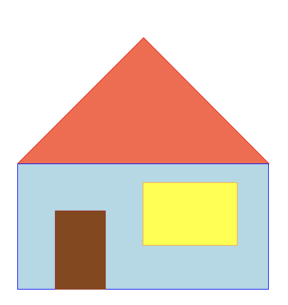
import turtle as t

# 1. SETUP the screen
screen = t.Screen()
screen.title("Turtle Project - House Builder")
screen.bgcolor("white")
screen.setup(width=600, height=600)

# 2. CREATE and CUSTOMIZE TURTLES
fT = t.Turtle()              #first Turtle
fT.shape("turtle")
fT.color("blue")
fT.speed(3)                  # Speed from 1 (slow) to 10 (fast)

# --- REUSABLE FUNCTIONS ---
def draw_rectangle(turtle_obj, side_length, side_width):
    """Draws a rectangle using the inputed turtle and size."""
    for _ in range(2):
        turtle_obj.forward(side_length)
        turtle_obj.right(90)
        turtle_obj.forward(side_width)
        turtle_obj.right(90)

# 3. CODE for the Action
# move to left to center house on screen
fT.penup()
fT.back(200)
fT.pendown()

# --- DRAW AND FILL HOUSE BASE ---
fT.color("blue", "lightblue")  # blue outline, lightblue fill
fT.begin_fill()
draw_rectangle(fT, 400, 200)
fT.end_fill()

# --- DRAW AND FILL ROOF ---
fT.color("red", "tomato")      # red outline, tomato red fill
fT.begin_fill()
fT.left(45)                # Pivot to lean into the roof peak
fT.forward(400 / 1.41)     # Left side of roof
fT.right(90)               # Peak angle
fT.forward(400 / 1.41)     # Right side of roof
fT.end_fill()

# --- RESET TURTLE POSITION AND DIRECTION ---
fT.penup()
fT.setheading(0)       # Force turtle to point strictly East (right)
fT.goto(-200, -200)    # Teleport exactly to the bottom-left corner of the house

# --- DRAW AND FILL DOOR ---
fT.forward(60)         # Walk 60 steps along the floor line
fT.left(90)            # Turn upward to draw the door upright
fT.color("brown", "saddlebrown") # brown outline, dark brown fill
fT.pendown()
fT.begin_fill()
draw_rectangle(fT, 125, 80)
fT.end_fill()

# --- DRAW AND FILL WINDOW ---
fT.penup()
fT.setheading(0)       # Point East again
fT.goto(0, -130)      # Updated window position!
fT.left(90)            # Face upward
fT.color("orange", "yellow") # orange outline, bright yellow fill
fT.pendown()
fT.begin_fill()
draw_rectangle(fT, 100, 150)
fT.end_fill()

# Hide the turtle at the end to make the drawing look clean
fT.hideturtle()

# 4. Code Run and Exit
screen.exitonclick()
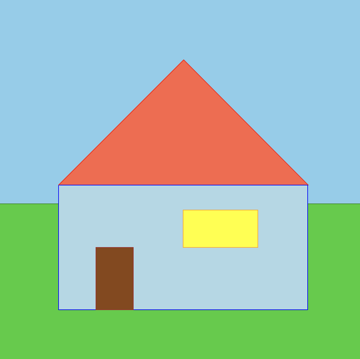
House with door, window, and background - sky & grass
Added a blue sky, green grass, and changed the shape and position of the window.
The order objects are created will affect if they are infront or behind one another.
- That is why the screen is set to blue for the sky being farthest away.
- Then the grass is drawn and filled in.
- And lastly the house and roof are placed so they are infront of the sky and grass.
import turtle as t

# 1. SETUP the screen
screen = t.Screen()
screen.title("Turtle Project - House Builder")
screen.bgcolor("skyblue")
screen.setup(width=600, height=600)

# 2. CREATE and CUSTOMIZE TURTLES
fT = t.Turtle() #first Turtle
fT.shape("turtle")
fT.color("blue")
fT.speed(7)

# --- REUSABLE FUNCTIONS ---
def draw_rectangle(turtle_obj, side_length, side_width):
    """Draws a rectangle using the inputed turtle and size."""
    for _ in range(2):
        turtle_obj.forward(side_length)
        turtle_obj.right(90)
        turtle_obj.forward(side_width)
        turtle_obj.right(90)

# 3. CODE for the Action

# --- DRAW AND FILL GREEN GRASS YARD ---
fT.penup()
fT.goto(-300, -30)
fT.setheading(0)
fT.color("forestgreen", "limegreen")
fT.pendown()
fT.begin_fill()
draw_rectangle(fT, 600, 300)
fT.end_fill()

# --- DRAW AND FILL HOUSE BASE ---
fT.penup()
fT.goto(-200, 0)
fT.setheading(0)
fT.color("blue", "lightblue")
fT.pendown()
fT.begin_fill()
draw_rectangle(fT, 400, 200)
fT.end_fill()

# --- DRAW AND FILL ROOF ---
fT.color("red", "tomato")
fT.begin_fill()
fT.left(45)
fT.forward(400 / 1.41)
fT.right(90)
fT.forward(400 / 1.41)
fT.end_fill()

# --- RESET TURTLE POSITION AND DIRECTION ---
fT.penup()
fT.setheading(0)
fT.goto(-200, -200)

# --- DRAW AND FILL DOOR ---
fT.forward(60)
fT.left(90)
fT.color("brown", "saddlebrown")
fT.pendown()
fT.begin_fill()
draw_rectangle(fT, 100, 60)
fT.end_fill()

# --- DRAW AND FILL WINDOW ---
fT.penup()
fT.setheading(90)
fT.goto(120, -100)
fT.left(90)
fT.color("orange", "yellow")
fT.pendown()
fT.begin_fill()
draw_rectangle(fT, 120, 60)
fT.end_fill()

# Hide the turtle at the end to make the drawing look clean
fT.hideturtle()

# 4. Code Run and Exit
screen.exitonclick()
Neighborhood
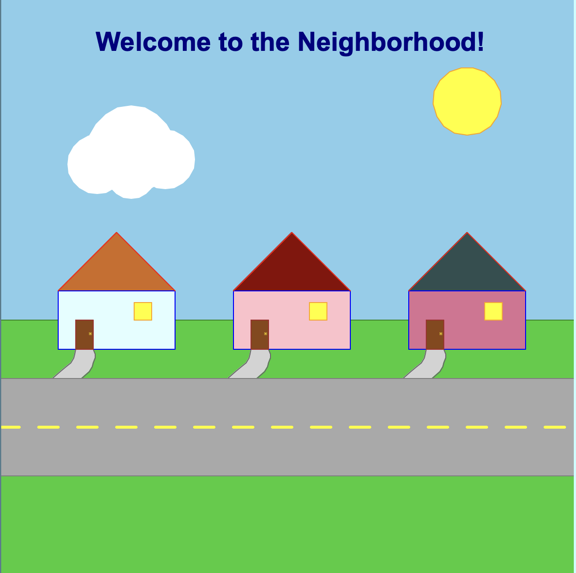
import turtle as t

# 1. --- SETUP the screen ---
screen = t.Screen()
screen.title("Turtle Project - Neighborhood Builder")
screen.bgcolor("skyblue")
screen.setup(width=600, height=600)

# 2. --- CREATE and CUSTOMIZE TURTLES ---
fT = t.Turtle() #first Turtle
fT.shape("turtle")
fT.color("blue")
fT.speed(0) # Set to fastest speed for quick neighborhood drawing

# --- REUSABLE FUNCTIONS ---
def draw_rectangle(turtle_obj, side_length, side_width):
    """Draws a rectangle using the inputed turtle and size."""
    for _ in range(2):
        turtle_obj.forward(side_length)
        turtle_obj.right(90)
        turtle_obj.forward(side_width)
        turtle_obj.right(90)

def draw_stamped_cloud(turtle_obj, start_x, start_y):
    """Draws a fluffy, organic cloud by stamping solid shapes, avoiding fill holes."""
    original_shape = turtle_obj.shape()
    original_pencolor = turtle_obj.pencolor()
    original_fillcolor = turtle_obj.fillcolor()

    turtle_obj.penup()
    turtle_obj.shape("circle")
    turtle_obj.color("white")

    # Puff 1: Left base
    turtle_obj.goto(start_x, start_y)
    turtle_obj.shapesize(3)
    turtle_obj.stamp()

    # Puff 2: Big middle hump
    turtle_obj.goto(start_x + 35, start_y + 15)
    turtle_obj.shapesize(4.5)
    turtle_obj.stamp()

    # Puff 3: Right base
    turtle_obj.goto(start_x + 70, start_y + 5)
    turtle_obj.shapesize(3)
    turtle_obj.stamp()

    # Puff 4: Soft lower puff
    turtle_obj.goto(start_x + 35, start_y - 10)
    turtle_obj.shapesize(2.5)
    turtle_obj.stamp()

    turtle_obj.shape(original_shape)
    turtle_obj.pencolor(original_pencolor)
    turtle_obj.fillcolor(original_fillcolor)

def draw_sky(turtle_obj):
    """Draws all environmental sky components including the sun, clouds, and title text."""
    # --- DRAW AND FILL SUN ---
    turtle_obj.penup()
    turtle_obj.goto(180, 160)
    turtle_obj.setheading(0)
    turtle_obj.color("orange", "yellow")
    turtle_obj.pendown()
    turtle_obj.begin_fill()
    turtle_obj.circle(35)
    turtle_obj.end_fill()

    # --- DRAW AND FILL CLOUD ---
    draw_stamped_cloud(turtle_obj, -200, 130)

    # --- ADD PROJECT TEXT TITLE ---
    turtle_obj.penup()
    turtle_obj.goto(0, 240)
    turtle_obj.color("navy")
    turtle_obj.write("Welcome to the Neighborhood!", align="center", font=("Arial", 20, "bold"))

def draw_house(turtle_obj, start_x, start_y, house_color, roof_color):
    """
    Draws a fixed house at 0.3 scale at a specific (x, y) origin point.
    The origin (start_x, start_y) matches the old location of (-60, 0).
    """
    base_len = 120.0
    base_wid = 60.0
    door_h = 30.0
    door_w = 18.0
    window_sz = 18.0

    # --- DRAW AND FILL CURVED WALKWAY ---
    turtle_obj.penup()
    turtle_obj.color("dimgray", "lightgray")
    # Adjusted walkway offsets relative to the house position
    turtle_obj.goto(start_x + 18.0, start_y - 60.0)
    turtle_obj.pendown()
    turtle_obj.begin_fill()

    # Soft curve scaling down to meet the street line at y = -90
    turtle_obj.goto(start_x + 17.4, start_y - 64.5)
    turtle_obj.goto(start_x + 15.6, start_y - 69.0)
    turtle_obj.goto(start_x + 12.6, start_y - 73.5)
    turtle_obj.goto(start_x + 8.1, start_y - 78.0)
    turtle_obj.goto(start_x + 2.1, start_y - 82.5)
    turtle_obj.goto(start_x - 6.0, start_y - 90.0)

    # Walk straight right across the street border edge
    turtle_obj.goto(start_x + 24.0, start_y - 90.0)

    # Soft curve winding back up directly to the RIGHT side of the door
    turtle_obj.goto(start_x + 31.5, start_y - 82.5)
    turtle_obj.goto(start_x + 34.8, start_y - 78.0)
    turtle_obj.goto(start_x + 36.3, start_y - 73.5)
    turtle_obj.goto(start_x + 38.1, start_y - 69.0)
    turtle_obj.goto(start_x + 38.4, start_y - 65.4)
    turtle_obj.goto(start_x + 36.0, start_y - 60.0)

    # Connect back to the starting point
    turtle_obj.goto(start_x + 18.0, start_y - 60.0)
    turtle_obj.end_fill()

    # --- DRAW AND FILL HOUSE BASE ---
    turtle_obj.penup()
    turtle_obj.goto(start_x, start_y)
    turtle_obj.setheading(0)
    turtle_obj.color("blue", house_color)
    turtle_obj.pendown()
    turtle_obj.begin_fill()
    draw_rectangle(turtle_obj, base_len, base_wid)
    turtle_obj.end_fill()

    # --- DRAW AND FILL ROOF ---
    turtle_obj.color("red", roof_color)
    turtle_obj.begin_fill()
    turtle_obj.left(45)
    turtle_obj.forward(85.1)
    turtle_obj.right(90)
    turtle_obj.forward(85.1)
    turtle_obj.end_fill()

    # --- POSITION TURTLE FOR DOOR ---
    turtle_obj.penup()
    turtle_obj.setheading(0)
    turtle_obj.goto(start_x, start_y - 60.0)

    # --- DRAW AND FILL DOOR ---
    turtle_obj.forward(18.0)
    turtle_obj.left(90)
    turtle_obj.color("brown", "saddlebrown")
    turtle_obj.pendown()
    turtle_obj.begin_fill()
    draw_rectangle(turtle_obj, door_h, door_w)
    turtle_obj.end_fill()

    # --- ADD A DOORKNOB ---
    turtle_obj.penup()
    turtle_obj.goto(start_x + 33.0, start_y - 45.0)
    turtle_obj.setheading(0)
    turtle_obj.color("darkgoldenrod", "gold")
    turtle_obj.pendown()
    turtle_obj.begin_fill()
    turtle_obj.circle(1.2)
    turtle_obj.end_fill()

    # --- DRAW AND FILL WINDOW ---
    turtle_obj.penup()
    turtle_obj.setheading(0)
    turtle_obj.goto(start_x + 78.0, start_y - 30.0)
    turtle_obj.left(90)
    turtle_obj.color("orange", "yellow")
    turtle_obj.pendown()
    turtle_obj.begin_fill()
    draw_rectangle(turtle_obj, window_sz, window_sz)
    turtle_obj.end_fill()

# 3. --- CODE for the Action ---

# --- DRAW AND FILL GREEN GRASS YARD ---
fT.penup()
fT.goto(-300, -30)
fT.setheading(0)
fT.color("forestgreen", "limegreen")
fT.pendown()
fT.begin_fill()
draw_rectangle(fT, 600, 300)
fT.end_fill()

# --- CALL THE ENVIRONMENT ---
draw_sky(fT)

# --- CALL CUSTOMIZED HOUSES (THE NEIGHBORHOOD) and SIDEWALK ---
# Center house (original location at x=-60, y=0)
draw_house(fT, -60, 0, "pink", "darkred")          #initialize set_x and sey_y

# Left house (shifted 180 pixels to the left)
draw_house(fT, -240, 0, "lightcyan", "chocolate")

# Right house (shifted 180 pixels to the right)
draw_house(fT, 120, 0, "palevioletred", "darkslategrey")

# --- DRAW THE PERPENDICULAR / PARALLEL STREET ---
# The street runs across the canvas from x=-300 to x=300, starting right where the sidewalks end (y=-90)
fT.penup()
fT.goto(-300, -90)
fT.setheading(0)
fT.color("gray", "darkgray")
fT.pendown()
fT.begin_fill()
draw_rectangle(fT, 600, 100) # 100 pixels wide street stretching down to y=-190
fT.end_fill()

# --- DRAW STREET LINES (Dashed Yellow) ---
fT.penup()
fT.goto(-300, -140) # Middle of the street
fT.color("yellow")
fT.width(3)
for _ in range(15):
    fT.pendown()
    fT.forward(20)
    fT.penup()
    fT.forward(20)

# Hide the turtle at the end to make the drawing look clean
fT.hideturtle()

# 4. Code Run and Exit
screen.exitonclick()
House with clouds and changeable night or day background
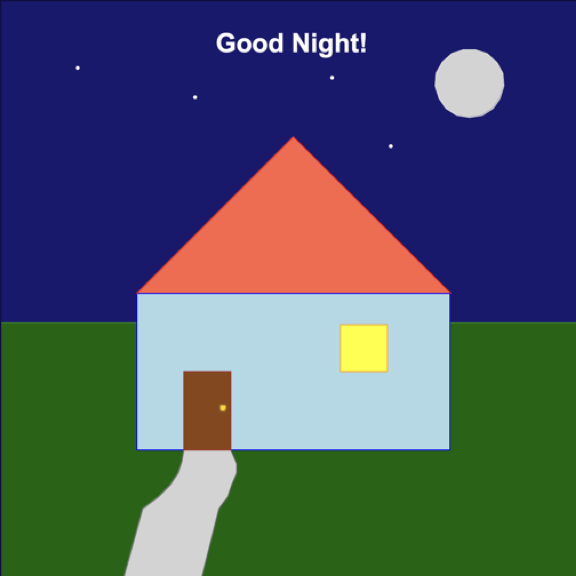
import turtle as t

# 1. SETUP the screen
screen = t.Screen()
screen.title("Turtle Project - Day and Night House Builder")
screen.setup(width=600, height=600)

# 2. CREATE and CUSTOMIZE TURTLES
fT = t.Turtle() #first Turtle
fT.shape("turtle")
fT.color("blue")
fT.speed(0) # Set to maximum speed so day/night transitions render instantly

# --- REUSABLE FUNCTIONS ---
def draw_rectangle(turtle_obj, side_length, side_width):
    """Draws a rectangle using the inputed turtle and size."""
    for _ in range(2):
        turtle_obj.forward(side_length)
        turtle_obj.right(90)
        turtle_obj.forward(side_width)
        turtle_obj.right(90)

def draw_stamped_cloud(turtle_obj, start_x, start_y):
    """Draws a cloud by stamping solid shapes, avoiding fill holes."""
    original_shape = turtle_obj.shape()
    original_pencolor = turtle_obj.pencolor()
    original_fillcolor = turtle_obj.fillcolor()

    turtle_obj.penup()
    turtle_obj.shape("circle")
    turtle_obj.color("white")

    # Puff 1: Left base
    turtle_obj.goto(start_x, start_y)
    turtle_obj.shapesize(3)
    turtle_obj.stamp()

    # Puff 2: Big middle hump
    turtle_obj.goto(start_x + 35, start_y + 15)
    turtle_obj.shapesize(4.5)
    turtle_obj.stamp()

    # Puff 3: Right base
    turtle_obj.goto(start_x + 70, start_y + 5)
    turtle_obj.shapesize(3)
    turtle_obj.stamp()

    # Puff 4: Soft lower puff
    turtle_obj.goto(start_x + 35, start_y - 10)
    turtle_obj.shapesize(2.5)
    turtle_obj.stamp()

    turtle_obj.shape(original_shape)
    turtle_obj.pencolor(original_pencolor)
    turtle_obj.fillcolor(original_fillcolor)

def draw_sky(turtle_obj, time_of_day):
    """
    Draws environmental assets adapted to the time of day.
    Arguments:
      - time_of_day: string ('day' or 'night')
    """
    if time_of_day.lower() == "night":
        screen.bgcolor("midnightblue")

        # --- DRAW THE MOON ---
        turtle_obj.penup()
        turtle_obj.goto(180, 180)
        turtle_obj.setheading(0)
        turtle_obj.color("gainsboro", "lightgray")
        turtle_obj.pendown()
        turtle_obj.begin_fill()
        turtle_obj.circle(35)
        turtle_obj.end_fill()

        # --- ADD TINY BACKGROUND STARS ---
        turtle_obj.penup()
        turtle_obj.color("white")
        star_positions = [(-100, 200), (40, 220), (100, 150), (-220, 230)]
        for pos in star_positions:
            turtle_obj.goto(pos)
            turtle_obj.dot(4) # Stamped star dots

        # --- TEXT TITLE (NIGHT) ---
        turtle_obj.goto(0, 240)
        turtle_obj.write("Good Night!", align="center", font=("Arial", 20, "bold"))

    else: # Default to Day
        screen.bgcolor("skyblue")

        # --- DRAW THE SUN ---
        turtle_obj.penup()
        turtle_obj.goto(180, 180)
        turtle_obj.setheading(0)
        turtle_obj.color("orange", "yellow")
        turtle_obj.pendown()
        turtle_obj.begin_fill()
        turtle_obj.circle(35)
        turtle_obj.end_fill()

        # --- DRAW CLOUD (Only visible during the day) ---
        draw_stamped_cloud(turtle_obj, -200, 130)

        # --- TEXT TITLE (DAY) ---
        turtle_obj.penup()
        turtle_obj.goto(0, 240)
        turtle_obj.color("navy")
        turtle_obj.write("Welcome Home!", align="center", font=("Arial", 20, "bold"))

def draw_house(turtle_obj, house_color, roof_color, size, time_of_day):
    """Draws a scalable house with active window glow dependent on time_of_day."""
    base_len = 400 * size
    base_wid = 200 * size
    door_h = 100 * size
    door_w = 60 * size
    window_sz = 60 * size

    # Choose window illumination color based on time of day attribute
    window_glow = "yellow" if time_of_day.lower() == "night" else "lightcyan"
    window_frame = "orange" if time_of_day.lower() == "night" else "deepskyblue"

    # --- DRAW AND FILL CURVED WALKWAY ---
    turtle_obj.penup()
    turtle_obj.color("dimgray", "lightgray")
    turtle_obj.goto(-140 * size, -200 * size)
    turtle_obj.pendown()
    turtle_obj.begin_fill()
    turtle_obj.goto(-142 * size, -215 * size)
    turtle_obj.goto(-148 * size, -230 * size)
    turtle_obj.goto(-158 * size, -245 * size)
    turtle_obj.goto(-173 * size, -260 * size)
    turtle_obj.goto(-193 * size, -275 * size)
    turtle_obj.goto(-220 * size, -300)
    turtle_obj.goto(-120 * size, -300)
    turtle_obj.goto(-95 * size, -275 * size)
    turtle_obj.goto(-84 * size, -260 * size)
    turtle_obj.goto(-79 * size, -245 * size)
    turtle_obj.goto(-73 * size, -230 * size)
    turtle_obj.goto(-72 * size, -218 * size)
    turtle_obj.goto(-80 * size, -200 * size)
    turtle_obj.goto(-140 * size, -200 * size)
    turtle_obj.end_fill()

    # --- DRAW AND FILL HOUSE BASE ---
    turtle_obj.penup()
    turtle_obj.goto(-200 * size, 0)
    turtle_obj.setheading(0)
    turtle_obj.color("blue", house_color)
    turtle_obj.pendown()
    turtle_obj.begin_fill()
    draw_rectangle(turtle_obj, base_len, base_wid)
    turtle_obj.end_fill()

    # --- DRAW AND FILL ROOF ---
    turtle_obj.color("red", roof_color)
    turtle_obj.begin_fill()
    turtle_obj.left(45)
    turtle_obj.forward(base_len / 1.41)
    turtle_obj.right(90)
    turtle_obj.forward(base_len / 1.41)
    turtle_obj.end_fill()

    # --- POSITION TURTLE FOR DOOR ---
    turtle_obj.penup()
    turtle_obj.setheading(0)
    turtle_obj.goto(-200 * size, -200 * size)

    # --- DRAW AND FILL DOOR ---
    turtle_obj.forward(60 * size)
    turtle_obj.left(90)
    turtle_obj.color("brown", "saddlebrown")
    turtle_obj.pendown()
    turtle_obj.begin_fill()
    draw_rectangle(turtle_obj, door_h, door_w)
    turtle_obj.end_fill()

    # --- ADD A DOORKNOB ---
    turtle_obj.penup()
    turtle_obj.goto(-90 * size, -150 * size)
    turtle_obj.setheading(0)
    turtle_obj.color("darkgoldenrod", "gold")
    turtle_obj.pendown()
    turtle_obj.begin_fill()
    turtle_obj.circle(4 * size)
    turtle_obj.end_fill()

    # --- DRAW AND FILL WINDOW (DYNAMIC LIGHTS) ---
    turtle_obj.penup()
    turtle_obj.setheading(0)
    turtle_obj.goto(60 * size, -100 * size)
    turtle_obj.left(90)
    turtle_obj.color(window_frame, window_glow)
    turtle_obj.pendown()
    turtle_obj.begin_fill()
    draw_rectangle(turtle_obj, window_sz, window_sz)
    turtle_obj.end_fill()

# 3. CODE for the Action

# Choose your theme here! Swap "night" with "day" to toggle times
current_time = "night"

# --- DRAW AND FILL GREEN GRASS YARD ---
fT.penup()
fT.goto(-300, -30)
fT.setheading(0)
# Lawn becomes darker deep forest green at night
yard_color = "darkgreen" if current_time == "night" else "limegreen"
fT.color("forestgreen", yard_color)
fT.pendown()
fT.begin_fill()
draw_rectangle(fT, 600, 300)
fT.end_fill()

# --- CALL INTERACTIVE ENVIRONMENT ---
draw_sky(fT, current_time)

# --- CALL CUSTOMIZED HOUSE ---
# Parameters: (Turtle, House color, Roof color, Size scale, Time of day)
draw_house(fT, "lightblue", "tomato", 0.8, current_time)

# Hide the turtle at the end to make the drawing look clean
fT.hideturtle()

# 4. Code Run and Exit
screen.exitonclick()
Nebraska capitol
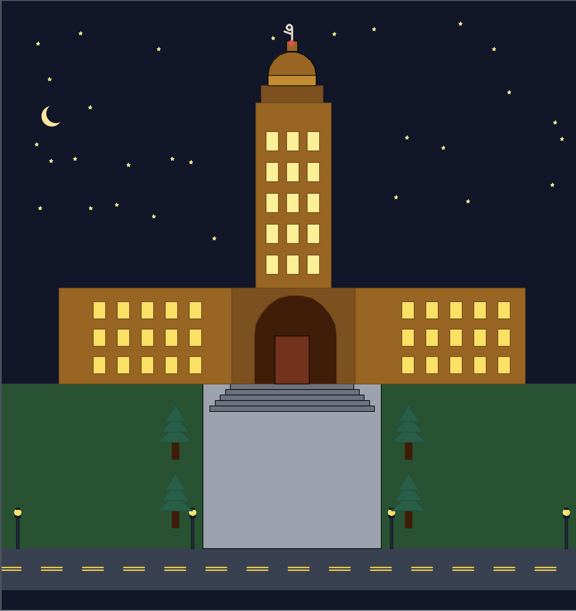
import turtle as t
import random

# 1. SETUP the screen
screen = t.Screen()
screen.title("Nebraska State Capitol - Night View")
screen.bgcolor("#0f172a")  # Deep midnight sky blue
screen.setup(width=850, height=900)

# 2. CREATE and CUSTOMIZE TURTLES
fT = t.Turtle() # Renamed to fT to avoid overriding the 't' module
fT.speed(0)  # Fastest drawing speed
fT.pensize(1)
fT.color("black")

# --- REUSABLE FUNCTIONS ---
# Draws a rectangle with color fill upward from (x, y)
def draw_rect(x, y, width, height, fill_color, line_color="black"):
    fT.penup()
    fT.goto(x, y)
    fT.setheading(0)
    fT.pendown()
    fT.color(line_color)
    fT.fillcolor(fill_color)
    fT.begin_fill()
    for _ in range(2):
        fT.forward(width)
        fT.left(90)
        fT.forward(height)
        fT.left(90)
    fT.end_fill()

# Aligns trunks with the evergreen needles
def draw_tree(x, y):
    # Trunk (10x25 rectangle) built upward
    draw_rect(x - 5, y, 10, 25, "#451a03", "#451a03")
    # Foliage layers (triangles)
    fT.color("#064e3b")
    fT.fillcolor("#065f46")
    for i in range(3):
        fT.penup()
        base_y = y + 25 + (i * 15)
        fT.goto(x, base_y)
        fT.setheading(0)
        fT.pendown()
        fT.begin_fill()
        half_w = 25 - (i * 5)
        fT.forward(half_w)
        fT.goto(x, base_y + 25)
        fT.goto(x - half_w, base_y)
        fT.goto(x + half_w, base_y)
        fT.goto(x - half_w, base_y)
        fT.end_fill()

# Helper function to draw small stars
def draw_star(x, y):
    fT.penup()
    fT.goto(x, y)
    fT.pendown()
    fT.color("#fef08a", "#fef08a")  # Soft yellow glow
    fT.begin_fill()
    for _ in range(5):
        fT.forward(5)
        fT.right(144)
    fT.end_fill()

# FIXED: Moved out of draw_star so it can be safely called globally
def draw_lamp(x, y):
    # Lamp post (thin dark rectangle)
    draw_rect(x - 2, y, 4, 45, "#1f2937", "#111827")
    # Glass housing base
    draw_rect(x - 4, y + 45, 8, 3, "#111827", "#111827")
    # Glowing Yellow Bulb
    fT.penup()
    fT.goto(x, y + 48)
    fT.pendown()
    fT.color("#fef08a", "#fde047")
    fT.begin_fill()
    fT.circle(5)
    fT.end_fill()
    # Small cap on top of the bulb
    draw_rect(x - 3, y + 57, 6, 2, "#111827", "#111827")
    fT.color("black")  # Reset turtle lines to black to avoid color leaking

# 3. CODE for the Action (FIXED: Reset Indentation)

# --- 1. SKY DECORATIONS (STARS and MOON) ---
random.seed(42)
for _ in range(35):
    sx = random.randint(-400, 400)
    sy = random.randint(100, 420)
    draw_star(sx, sy)

# Shrunk and color-swapped to bright whitish silver moon
fT.penup()
fT.goto(-350, 280)
fT.dot(30, "#FFE494")
fT.goto(-344, 284)
fT.dot(28, "#0f172a") # Matched to correct screen background color

# --- 2. PEDESTRIAN PLAZA and STREET (BOTTOM) ---
draw_rect(-425, -350, 295, 240, "#14532d", "#14532d")  # Left Lawn
draw_rect(130, -350, 295, 240, "#14532d", "#14532d")   # Right Lawn

# K Street asphalt
draw_rect(-425, -410, 850, 60, "#374151", "#374151")

# Double dashed yellow lines down the center of K Street
fT.pensize(2)
fT.color("#facc15")

for i in range(15):
    fT.penup()
    fT.goto(-425 + (i * 60), -378)
    fT.pendown()
    fT.forward(30)

for i in range(15):
    fT.penup()
    fT.goto(-425 + (i * 60), -382)
    fT.pendown()
    fT.forward(30)

fT.pensize(1)  # Reset pensize back to normal

# Walkway concrete
draw_rect(-130, -350, 260, 240, "#9ca3af")

# Calls to draw the lamps onto the street corners
draw_lamp(-400, -350)
draw_lamp(-145, -350)
draw_lamp(145, -350)
draw_lamp(400, -350)

# --- 3. PLAZA TREES ---
draw_tree(-170, -320)
draw_tree(-170, -220)
draw_tree(170, -320)
draw_tree(170, -220)

# --- 4. PLAZA STEPS ---
for i in range(5):
    step_y = -150 + (i * 8)
    step_w = 240 - (i * 15)
    step_x = -(step_w // 2)
    draw_rect(step_x, step_y, step_w, 8, "#6b7280")

# --- 5. THREE-STORY BASE WINGS (THE 'PAD') ---
draw_rect(-340, -110, 680, 140, "#a16207", "#713f12")

# Glowing Wing Windows
for row in range(3):
    for col in range(5):
        x_pos = -290 + (col * 35)
        y_pos = -95 + (row * 40)
        draw_rect(x_pos, y_pos, 18, 25, "#fde047", "#713f12")

for row in range(3):
    for col in range(5):
        x_pos = 160 + (col * 35)
        y_pos = -95 + (row * 40)
        draw_rect(x_pos, y_pos, 18, 25, "#fde047", "#713f12")

# --- 6. GRAND NORTH ENTRANCE  ---
draw_rect(-88, -110, 180, 140, "#854d0e", "#713f12")

# The Famous North Entrance Arch
fT.penup()
fT.goto(-55, -110)
fT.setheading(90)
fT.pendown()
fT.fillcolor("#451a03")
fT.begin_fill()
fT.forward(70)
fT.circle(-60, 180)
fT.forward(70)
fT.left(90)
fT.forward(120)
fT.end_fill()

# Golden Portal Doors inside the arch
draw_rect(-25, -110, 50, 70, "#7c2d12")

# --- 7. THE TOWER ('TOWER ON THE PLAINS') ---
draw_rect(-53, 30, 110, 270, "#a16207", "#713f12")

# Glowing Tower Windows
for row in range(5):
    for col in range(3):
        wx = -38 + (col * 30)
        wy = 50 + (row * 45)
        draw_rect(wx, wy, 18, 28, "#fef08a", "#713f12")

# --- 8. THE DOME  ---
draw_rect(-45, 300, 90, 25, "#854d0e", "#713f12")

# Golden Dome base step
draw_rect(-35, 325, 70, 15, "#ca8a04")

# Semicircular Dome
fT.penup()
fT.goto(35, 340)
fT.setheading(90)
fT.pendown()
fT.fillcolor("#a16207")
fT.begin_fill()
fT.circle(35, 180)
fT.left(90)
fT.forward(70)
fT.end_fill()

# Dome Lantern Pedestal
draw_rect(-8, 375, 16, 15, "#a16207")

# --- 9. THE SOWER STATUE and RED BEACON LIGHT ---
fT.penup()
fT.goto(0, 390)
fT.pendown()
fT.pensize(3)
fT.color("#e3d3ca")

# Standing figure lines
fT.setheading(90)
fT.forward(20)
fT.circle(4)
fT.penup()
fT.goto(0, 400)
fT.pendown()
fT.setheading(160)
fT.forward(12)

# Red aviation warning light
fT.penup()
fT.goto(0, 390)
fT.pendown()
fT.color("#ef4444", "#ef4444")
fT.begin_fill()
fT.circle(3)
fT.end_fill()

# Hide turtle and conclude
fT.hideturtle()

# 4. Code Run and Exit
screen.exitonclick()
Resources
Grid page
Turtle methods
- Turtle motion
-
Move and draw
- Tell the Turtle's state
- Settings and measurement
- Pen control
-
Drawing state
Color control
Filling
More drawing control
- Turtle state Visibility
- Appearance
- Using events
- Special Turtle methods
- Methods of TurtleScreen/Screen
- listen()
- onkey() | onkeyrelease()
- onkeypress()
- onclick() | onscreenclick()
- ontimer()
- mainloop() | done()
- mode()
- colormode()
- getcanvas()
- getshapes()
- register_shape() | addshape()
- turtles()
- window_height()
- window_width()